
Key takeaways:
- Most MSPs manage 3CX backups system-by-system with no centralized view of what’s current and what’s stale
- Controvo’s Backup Manager shows backup status across every phone system in one table
- Run immediate backups on one or many systems with configurable options — recordings, compression, encryption
- Schedule one-time or recurring backups on Daily, Weekly, Monthly, or Custom cron schedules
- Smart file naming with
%DATE%and%DATETIME%variables ensures every recurring backup gets a unique name
The Backup Problem Nobody Talks About Until It’s Too Late
Every MSP knows backups matter. Every MSP also knows that 3CX backup management across a portfolio of systems is a mess.
Here’s what it looks like in practice: each system has its own backup schedule configured in its own admin console. Some systems have automated backups set up by the original installer. Some have a cron job that somebody wrote two years ago. Some have nothing — because the system was set up during a rush and the backup step got skipped.
The only way to know if backups are current is to log into each system and check. Nobody does that regularly. So what actually happens is that backup failures go unnoticed until a system needs to be restored and the most recent backup is three months old. Or it doesn’t exist at all.
This isn’t a technical problem. 3CX supports backups natively. It’s a visibility and workflow problem. There’s no single place to see backup status across all your managed systems, and there’s no way to trigger or schedule backups without logging into each system individually.
One Table, Every System
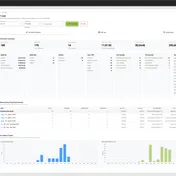
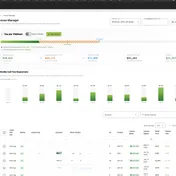
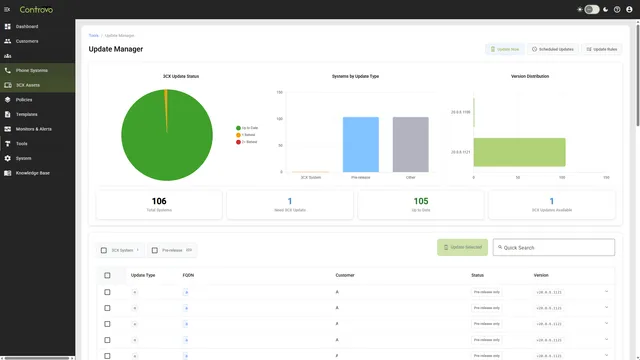
The Backup Manager gives you a centralized view of backup status across your entire portfolio. One table. Every phone system. Columns for FQDN, Customer, Last Backup date, and whether a backup schedule is configured on the system.
The Last Backup column shows relative time — “2 days ago,” “Today,” “Never” — with the full date on hover. You can see immediately which systems are current, which are stale, and which have never been backed up at all. Filter by customer, search by FQDN, sort by any column.
That table alone solves half the problem. The other half is doing something about it.
Backup Now
Select one or more systems in the table and click Backup. Configure the backup name, choose whether to include recordings, enable compression, and optionally set an encryption password. Then go.
A progress banner tracks each system’s backup status in real time. You can see which systems have completed, which are in progress, and which have failed — with retry support for failures. No need to check back later or dig through logs to find out what happened.
For quick single-system backups, there’s a per-row backup button on each system in the table. One click, same configuration options, immediate execution.
Scheduled and Recurring Backups
On-demand backups handle emergencies. Scheduled backups handle everything else.
The Backup Manager supports three scheduling modes:
- One-time — Schedule a backup for a specific date and time. Useful for pre-maintenance backups or end-of-quarter snapshots.
- Recurring — Create backups on a Daily, Weekly, Monthly, or Custom (cron) schedule with optional start and end dates. Set it once and every system in the selection gets backed up on the schedule you define.
- Custom cron — For MSPs who need precise control. Define the schedule using standard cron syntax.
All scheduled and recurring tasks appear in the Backup Log tab. View execution history, check status and results, and cancel active tasks directly from the log.
Smart File Naming
If you’re running recurring backups, every backup needs a unique file name. Overwriting yesterday’s backup with today’s defeats the purpose.
The Backup Manager supports global variables in backup file names:
%DATE%resolves toddMMyyyyat execution time — e.g.,14042026%DATETIME%resolves toddMMyyyy_HHmmss— e.g.,14042026_143000
A live preview shows exactly how the file name will look before you save. This is a small feature, but it eliminates the single most common recurring backup mistake: accidentally overwriting previous backups because someone forgot to make the file name unique.
The Backup Log
Every backup action — on-demand, scheduled, recurring — is logged in the Backup Log tab. You get a full history: when the task was created, when it executed, whether it succeeded or failed, and the result details.
Active scheduled tasks can be cancelled directly from the log. No need to navigate to a different screen or remember which system has which schedule.
Pairing Backups With Monitoring
The Backup Manager doesn’t exist in isolation. Controvo’s dashboard already tracks Missing Backups as a drilldown metric — systems that haven’t been backed up recently show up on your dashboard with configurable thresholds. The Backup Manager gives you the tool to fix what the dashboard flags.
Dashboard says three systems are overdue for a backup? Open Backup Manager, select those systems, run the backup. The workflow is: see the problem, fix the problem, verify it’s fixed — all within Controvo.
Who Can Use It
The Backup Manager is available under Tools to any user with Phone Systems read permission. Creating scheduled or recurring backups requires Scheduled Tasks permissions. Controvo’s role-based permission system means you can give your senior techs full backup control while limiting junior staff to view-only access.
Try It
The Backup Manager is available now. Log in to Controvo and find it under Tools. Not in the pilot yet? Apply for early access.