

Key takeaways:
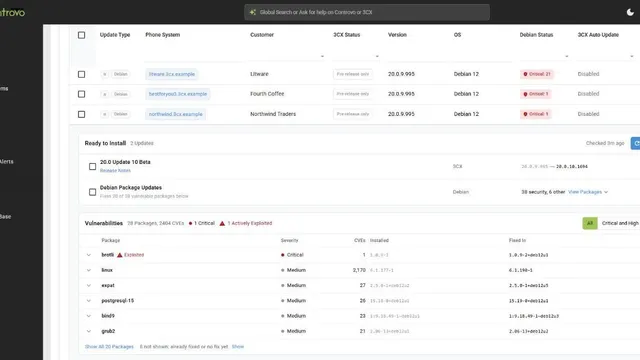
- Update Manager now shows the Debian OS under each 3CX system next to its 3CX updates, in one row per system.
- Open vulnerabilities are listed per package with severity, the version that fixes them, and a flag when a CVE is being actively exploited.
- Overview cards count critical and high OS vulnerabilities, systems that need an OS update, and systems on an unsupported OS.
- Update Selected handles 3CX and Debian together: security updates only or everything, now or as a scheduled task.
- Every OS update run lands in the Audit Log with each package’s version before and after.
The Part of the Stack Nobody Owns
Most partners have a routine for 3CX updates. A new build comes out, someone reads the notes, and the fleet gets updated. We built Update Manager so that routine doesn’t take a day of logging into admin consoles.
The operating system underneath is a different story. A self-hosted 3CX system is a Debian server, and Debian ships security fixes on its own schedule. The 3CX update doesn’t cover them. Unless someone on your team logs into each box and runs updates by hand, those packages sit there, and they keep sitting there.
Ask how many of your customers’ phone systems have unpatched critical OS vulnerabilities right now. Most partners can’t answer that without a week of work, and the honest answer is usually “more than we’d like.”
What Shipped
Debian next to 3CX, one row per system
The Update Manager table now has OS and Debian Status columns beside 3CX Status, plus a Debian filter so you can pull up just the systems that need OS work. Expand a row and you get two panes: what 3CX has ready to install, and what Debian has ready to install, split into security and other packages.
Vulnerabilities you can act on
The Vulnerabilities card lists each affected package with the installed version, the version that fixes it, and a severity dot. Each CVE links to its tracker entry, and anything known to be exploited in the wild is flagged. A filter narrows the list to Critical and High when you only have time for what matters most.
Some findings don’t have a fix from Debian yet, and some are fixed but waiting on a reboot. Those are labelled as such and folded away, so the list you see is the list you can do something about today.
Across the fleet, the overview adds cards for Critical OS Vulnerabilities, High OS Vulnerabilities, Need OS Update and Unsupported OS, along with charts for Debian update status and pending updates by type.
Update now, or on a schedule
Select the systems you want and use Update Selected. It covers 3CX and Debian in one pass: security updates only or all OS updates, recommended packages only, and a reboot if one is needed. Reboots wait until the system is quiet, so you aren’t dropping calls to apply a patch. Schedule it as an Update OS task if you’d rather it ran overnight.
Each run is recorded under Update Logs and in the Audit Log as “OS Updates Applied,” with every package’s before and after version. When a customer or an auditor asks what changed on their phone system, you have the list.
Why This Matters
A phone system is a server on the internet that handles calls and often credentials for SIP trunks. If it gets compromised, the customer won’t care whether the hole was in 3CX or in a Debian package, and patching only the application leaves half the job undone.
Fleet-wide visibility is what changes the conversation. Instead of “we patch when we can,” you can show a customer that their systems have zero critical OS vulnerabilities, and prove when that became true.
Try It
Debian OS updates are available now in Controvo’s Update Manager. Open Controvo and go to Tools → Update Manager. Not a Controvo partner yet? Get started.
For the full list of what shipped, see the October & November 2026 release notes.